Plan your content
Use the calendar and the Opportunities list to see what your blog will publish and which keywords are worth an article.
The Calendar shows what your blog will publish and when. The Opportunities list shows the keywords worth an article. Both come from real search data: what Google already shows your site for, what your competitors rank for, and what people search for in your field.
Planning works for blogs. Most of the plan is filled by auto-articles, and you can add and move topics yourself at any time.
The calendar
Open Publications, pick your blog and click the Calendar tab.
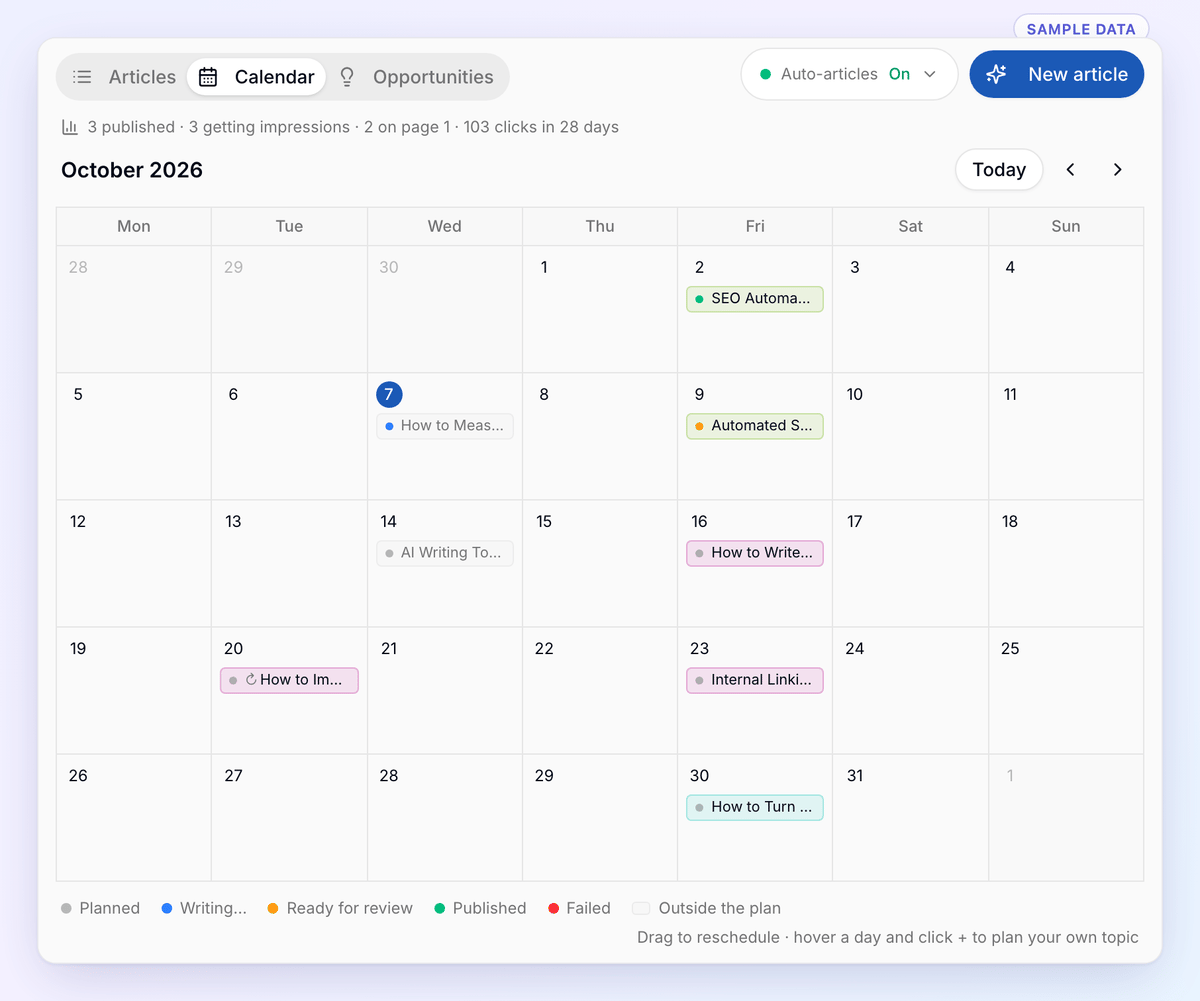
Each article is a chip on the day it goes live. The chip colour is its topic cluster. The dot shows its status: Planned, Writing…, Ready for review, Published or Failed.
Grey chips marked Outside the plan are articles you created yourself. They sit on their publish date, or on the day you created them if they have no date.
A ↻ in front of a title marks a refresh: a published article that ProjectHQ will update in place because it has started to slip in Google.
Use Today and the arrows to move between months.
Hover over a chip to see its cluster, keyword, publish date, length, search volume, difficulty and the angle the article will take. Open & edit opens it.
The line above the calendar sums up how the plan is doing in Google: how many articles are published, how many get impressions, how many are on page 1 and how many clicks they earned in the last 28 days. The figures come from Search Console, so connect Google Search Console to see them. The first measurement arrives about a week after an article goes live.
Move or add articles
Drag a chip to another day to reschedule it. This works for planned articles, articles waiting for review, failed ones, and your own articles that have a publish date.
Hover over a day and click + to plan your own topic for that day. Enter the Topic / title and a Target keyword, check the Publish date, and click Add to plan. The AI researches, writes and publishes it on that day, like the rest of the plan.
A planned article
Click a planned topic in the calendar, or the Up next row at the top of the Articles tab, to open its details:
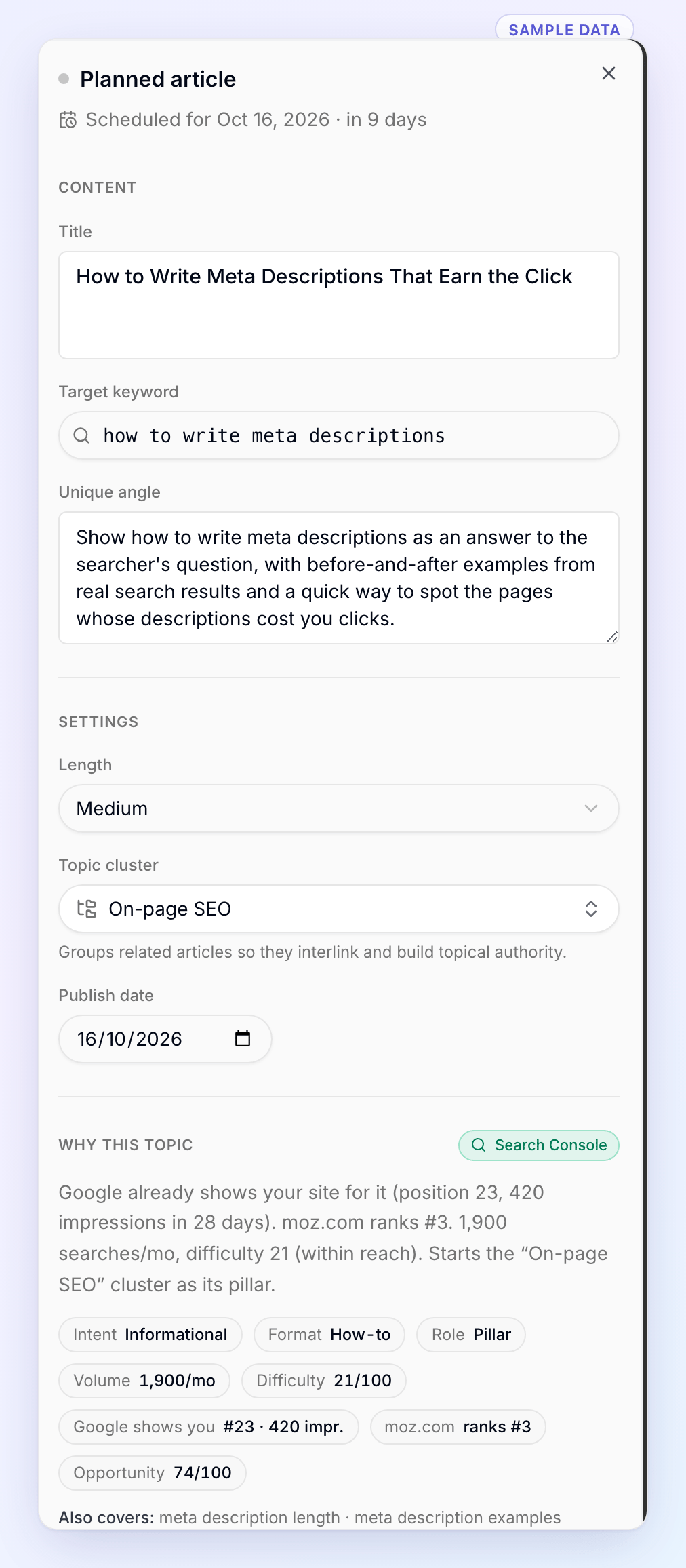
Content: the Title, Target keyword and Unique angle, meaning what makes this article different from what already ranks. You can change them until the article is written.
Settings: the Length (Short, Medium or Long), the Topic cluster and the Publish date.
Why this topic: where the idea came from and why it scored well. This includes search intent, format, search volume, difficulty, your current position in Google and the competitor that ranks for it.
Once the article is published, Performance in Google shows its clicks, impressions, average position and top queries for the last 28 and 90 days.
At the bottom you'll find Review article or Open article once it's written, Retry generation if writing failed, and Delete for topics that haven't been written yet.
Where topics come from
Each topic carries a badge that shows its source:
Badge | Meaning |
|---|---|
Search Console | Google already shows your site for this query. |
Competitor gap | A competitor ranks for it and you don't. |
Your keywords | A keyword you track in the Rank Tracker. |
Keyword research | Found by expanding your themes into real search queries. |
AI suggestion | Proposed by the AI and checked against search data. |
Topic clusters
Related articles are grouped into a topic cluster, such as "On-page SEO". Articles in a cluster link to each other, which helps Google see your site as an authority on the subject. One article usually acts as the cluster's main guide and the rest support it.
If several articles in a cluster get no impressions for three months, the calendar suggests dropping it. Click Stop this cluster and future topics will come from elsewhere.
Opportunities
The Opportunities tab lists every keyword the planner has found for this blog, with the reason it was chosen or set aside.
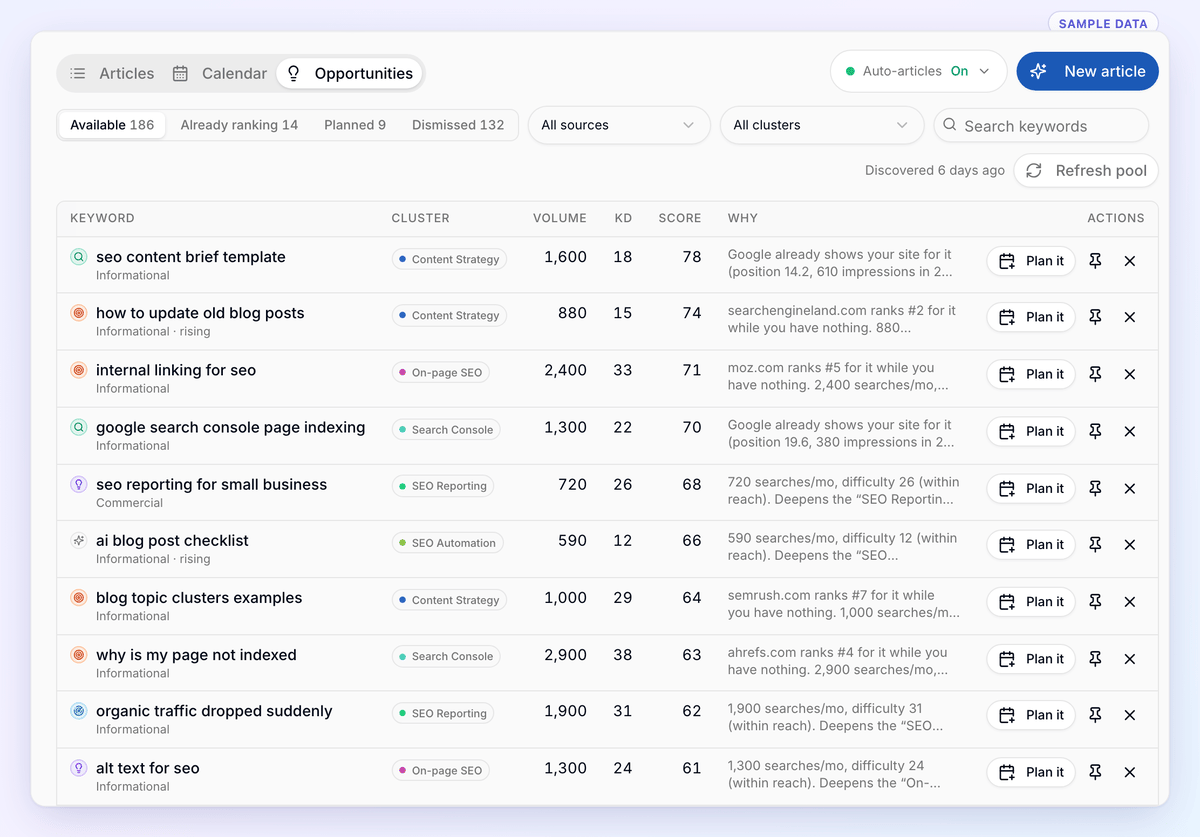
The tabs at the top split the list into Available, Already ranking, Planned and Dismissed. Narrow it further with All sources, All clusters and Search keywords.
Volume is monthly searches, KD is keyword difficulty, and Score is how good an opportunity it is for your site. Why explains the score in a sentence.
Plan it adds the keyword to the next free slot on your calendar.
The pin button (Pin for the next batch) makes sure the planner picks it next time.
Dismiss (the ×) removes a keyword you don't want. Dismissed keywords can be brought back with Restore.
Refresh pool looks for new keywords. You can do this once a day.
The Opportunities list fills up the first time the planner suggests topics, so set up auto-articles first. Until then the tab says No keyword pool yet.
Tip: Want a single article on a topic that isn't in the plan? Click New article and write it with AI. Give it a Publish date and it appears on the calendar too.