Getting started with ProjectHQ
What ProjectHQ does, what each module is for, and the four steps from sign-up to a working workspace.
ProjectHQ puts everything that grows your website in one place: AI-written articles, website analytics, a live chat with an AI assistant, and the SEO tools that show how people find you. You add your website once — ProjectHQ reads it, plans articles around real searches, trains an assistant on your content and starts counting your visitors.
This section gets you from sign-up to a working workspace in about ten minutes.
On Webflow? Install the ProjectHQ App from the Webflow Marketplace instead: your site's details come from Webflow's API, and ProjectHQ never crawls a Webflow site — so Site Audit, Webpages and importing pages into the Knowledge Base aren't available for it. See Publish to Webflow.
Your workspace at a glance
Every website you add becomes a project. Open one and you land on its Dashboard:
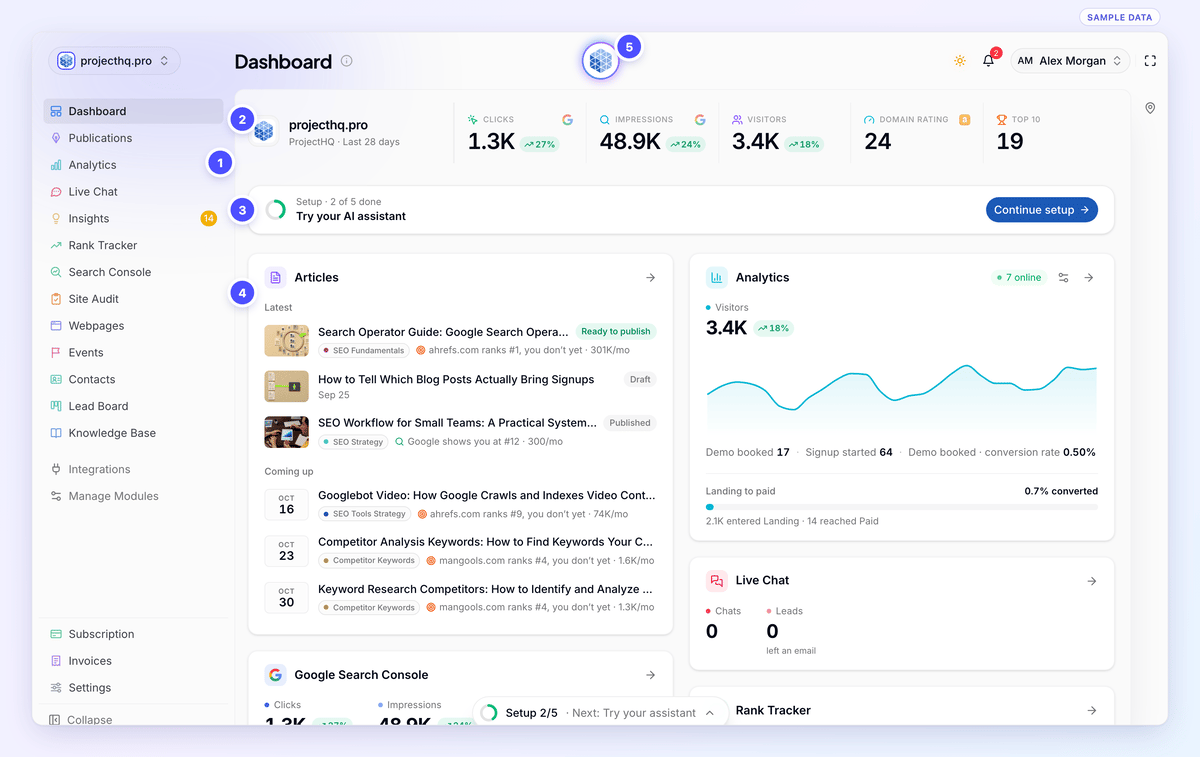
The menu — every module you use for this project. You can add, remove and reorder them.
Your key numbers — clicks and impressions from Google, visitors, Domain Rating and keywords in Google's top 10, for the last 28 days, with the change against the 28 days before.
The setup guide — the few steps left to get the most out of ProjectHQ. It disappears once you're done.
Module cards — the latest from each module: articles in progress and coming up, traffic, chats, Search Console and rankings. Click a card's arrow to open the module.
Chat with us — questions about ProjectHQ? Ask here.
You can also use ProjectHQ from your own AI assistant — see Use ProjectHQ from ChatGPT, Claude or Cursor.
What each module does
Module | What you use it for |
|---|---|
Plan, write and publish articles with AI — for your blog and your documentation. | |
See how many people visit, where they come from, what they read and who becomes a customer. | |
Talk to visitors on your site. An AI assistant trained on your website answers when you're away and collects leads. | |
A prioritised list of SEO improvements, each with the impact it's likely to have. | |
Follow your positions in Google for the keywords that matter, and compare with competitors. | |
Your real clicks, impressions and search queries from Google. | |
A regular crawl of your site that lists technical SEO problems and how to fix them. Not available for Webflow sites. | |
Every page ProjectHQ found on your site, with its data in one place. Not available for Webflow sites. | |
A timeline of launches and changes, so you can tell why traffic or rankings moved. | |
Visitors who left their email or were identified, with their history. | |
A board to move leads from first contact to customer. Off by default — turn it on in Manage Modules. | |
Everything the AI knows about your business. The article writer and the chat assistant both use it. |
Get started in four steps
Start your free trial — create your account and add your website.
Your setup guide — read your first article, try your assistant and connect Google.
Install the tracking script — one line of code turns on Analytics and Live Chat.
Find your way around — the menu, settings, integrations and notifications.
Tip: The screenshots in this documentation use the projecthq.pro project with sample numbers. Your own projects show your data.