Act on insights
Insights is a prioritised list of SEO improvements for your site, each with the impact it is likely to have and a one-click next step.
Insights is your SEO to-do list. Every day ProjectHQ looks at your rankings, your Search Console data, your site audit, your analytics and your competitors, and turns what it finds into concrete suggestions — each with a priority, the impact it's likely to have, and a button that starts the work.
The number next to Insights in the menu is how many active insights are waiting.
Read the list

- Active, Done, Snoozed — the tabs split insights by what you did with them.
- Critical, High, Medium, Low — active insights are grouped by priority, the most important first.
- Each card shows the insight's type and when it was added, a one-line summary, and the details that matter — the affected pages, the keywords, or the queries.
- Impact — where ProjectHQ can put a number on it, the card says what's at stake, such as missed clicks, search volume or affected pages. Next to it you see how sure that number is: Measured (from your own analytics and tracking data), Estimated (search volume × a click-through model) or Approximate (directional, not exact).
- Filter (top right) narrows the list by Priority and Type.
Act on an insight
Click Review on a card to open it in full: the explanation, the numbers behind it and what to do.

Many insights come with a button that does the next step for you:
| Button | What it does |
|---|---|
| Track … keywords / Add keywords to Rank Tracker | Adds the suggested keywords to the Rank Tracker. |
| Create article using AI | Starts an article on a keyword your competitors rank for and you don't — see Write an article with AI. |
| Add refresh to plan | Puts an update of an existing article on your content plan. |
| Open editor | Opens the article the insight is about. |
| Show all affected URLs | Opens the matching issue in the Site Audit. |
When you're done, click Mark done (the tick on a card). It moves to Done. Not now? Skip for now (in the ⋯ menu on a card) moves it to Snoozed; open it there and click Reactivate to bring it back.
The kinds of insight
| Type | What it tells you | Needs |
|---|---|---|
| Technical Issue | Site audit problems worth fixing, with the affected pages. | Site Audit |
| Index Coverage | Pages Google confirmed it hasn't indexed — they can't rank until fixed. | Google Search Console |
| Search CTR | Queries that rank well but get fewer clicks than their position should bring. | Google Search Console |
| Striking Distance | Queries on page two with real demand — push them into the top 10. | Google Search Console |
| Content Refresh | A page just off the top for real searches — strengthen it instead of writing a new one. | Google Search Console |
| Content Clusters | Which topic clusters of your content plan Google rewards, and which it ignores. | Google Search Console, content plan |
| New Article Proposition | Keywords your competitors rank for and you don't. | Competitors |
| Track Competitor Keywords, Keyword Monitoring | Keywords worth adding to the Rank Tracker. | — |
| Competitor Intelligence | Competitors worth tracking. | — |
| Ranking Insights | Ranking moves worth knowing about, such as two of your pages competing for one keyword. | Rank Tracker |
| SERP Features | Keywords where you rank but don't own a feature that's on offer. | Rank Tracker |
| Content Optimization, Page Optimization | Concrete improvements for an article or a page. | — |
| Internal Linking | Orphan and under-linked pages that should get more internal links. | Site Audit |
| Domain Authority | Your Domain Rating trend and the gap to your competitors. | — |
| High Bounce Rate | Landing pages people leave quickly. | Analytics |
| Top Converting Source | The traffic source that brings the most conversions — do more of it. | Analytics, goals |
The more you connect — Google Search Console, the tracking script, goals — the more of these you'll get.
Stop an insight from coming back
On a Technical Issue card, Ignore this issue type stops insights for that kind of problem. On a competitor suggestion, the crossed-out eye next to the domain (Don't suggest this competitor again) stops it from being suggested.
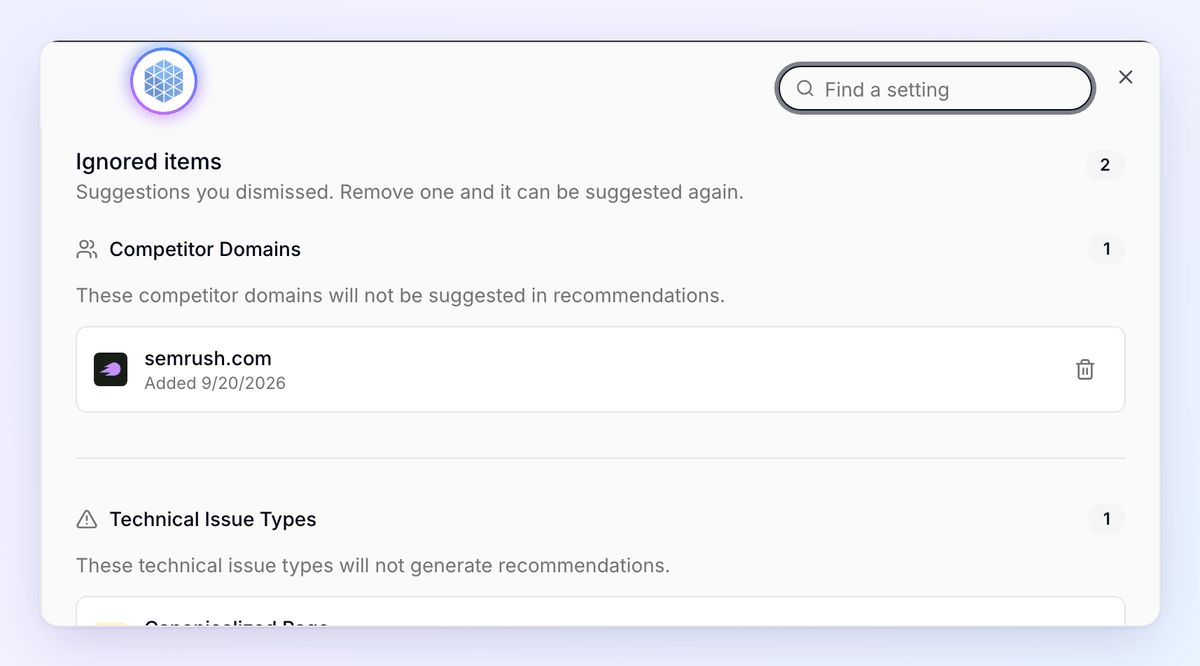
To undo, click Settings in the bar on the right of the Insights page. It opens Ignored items in the project settings, split into Competitor Domains and Technical Issue Types. Click the bin next to an item and confirm with Remove — it can be suggested again.