See AI and search crawlers
See which search engines and AI crawlers read your site, and report the ones a tracking script can't see from your own server.
Search engines and AI assistants read your site all the time: Google and Bing to index it, ChatGPT and Perplexity to answer someone's question, and AI companies to train their models. The Crawlers report shows which companies come, how often, and which pages they read, kept apart from your human visitors.
Where to find it
On the Analytics page, scroll to the last section, Bots & crawlers. Everything in it is left out of the numbers above, so your visitor counts stay about people.

Read the report
- Company lists who read your site, with when they were last Seen and how many Hits. Hover over a company to see which of its bots it was, and how many hits were proved to really come from that company. Anyone can pretend to be "GPTBot", so ProjectHQ checks where each hit came from against what the company publishes.
- Page lists the pages crawlers read most. Failed counts requests your site answered with an error (a 4xx or 5xx status), which is only known when you report crawlers from your server (below).
- The tabs narrow the list by kind of crawler:
| Tab | What it covers |
|---|---|
| AI answers | Assistants fetching a page right now to answer someone, such as ChatGPT or Perplexity. |
| Indexing | Classic search engine indexing, such as Googlebot and Bingbot. |
| Training | Collection for training AI models, such as GPTBot or ClaudeBot. |
| SEO tools | SEO crawlers such as Ahrefs. |
| Other | Everything else, such as link previews and uptime monitors. |
See the crawlers a script can't see
Most AI crawlers, including GPTBot, ClaudeBot and CCBot, fetch your HTML without running JavaScript, so the tracking script never loads for them. The card tells you how many known crawlers fall into this group. To count them, report them from your own server:
- Click Report from your server on the card, or open Analytics settings → Installation and find Server-side crawler reporting.
- Pick where your site runs: Next.js, Cloudflare, Express · Hono or Any server.
- Click Copy and add the code to your site. For the first three, install the
@projecthq/crawlerspackage (npm install @projecthq/crawlers). The code already includes your site ID. - Deploy. Crawler visits start appearing in the report as they happen.

Your visitors' traffic never leaves your server. The code checks each request against a list of known crawlers first, and only sends the ones that match. Your site ID is public (the tracking script already carries it), so it's safe in code you commit.
A few things to know:
- Next.js: on Next.js 16 the file is
proxy.ts. On 15 and earlier it'smiddleware.tsand the function is calledmiddleware. Already have one? Add the singlerecordCrawlerline to it. - Express: add it before your routes so it sees every request. It also records the status code your server answered with, which fills the Failed column.
- Any server: the snippet shows a plain HTTP request to
https://api.projecthq.pro/v1/server-hitsthat you can port to any language. Check the user agent first and send only crawler requests. On serverless platforms, hand the request to the platform'swaitUntilso it isn't cut off when the response ends. You can send up to 500 hits in one request, and use Authenticate with an API key instead if you'd rather not use the site ID. - API key: this is your project's API key from Analytics settings → Revenue & costs → From your server, the same one used for sales. If a project owner clicks Regenerate there, the old key stops working immediately and crawler reports sent with it are rejected until you switch to the new one. Reporting with the site ID isn't affected. See Track revenue and costs.
- Reports are only accepted for your project's domain and its subdomains. If nothing arrives behind a reverse proxy, make sure it passes the original
Host(orX-Forwarded-Host) header.
Suspicious browsers
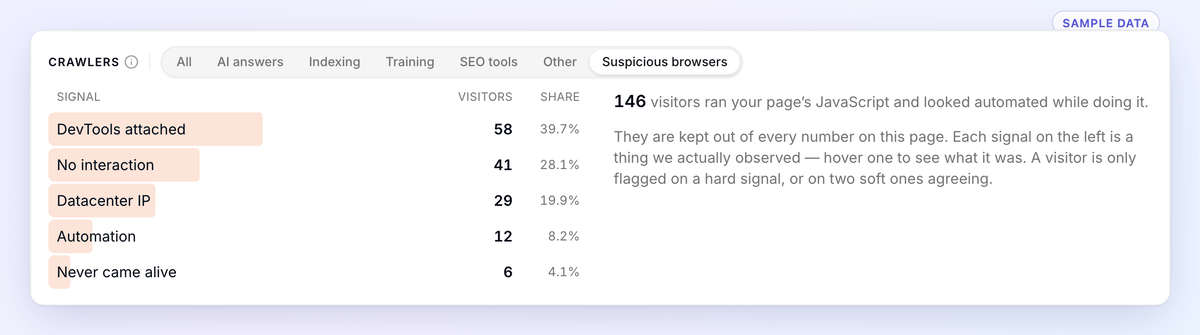
Some bots do run your JavaScript: scrapers and automated browsers that look like visitors. The Suspicious browsers tab shows how many visitors were flagged and the signals that gave them away, such as DevTools attached, Automation or No interaction. Hover over a signal to see what it means. A visitor is only flagged on one strong signal, or on two weaker ones agreeing, and flagged visitors are left out of every other number on the page.